

When to Repair or Replace an Older Laptop
How long should a laptop actually last?
A well-built laptop should give you five to seven years of useful life, and plenty keep going longer with a modest bit of care. The trouble is that "slow" and "broken" get lumped together. A machine that takes four minutes to boot because it's running a clapped-out mechanical hard drive isn't dying — it's just badly configured. A machine with a cracked screen, a swollen battery and a failed charging port is a different conversation entirely.
Before you spend anything, work out which of those two you're dealing with. That single distinction usually settles the argument.
Do the repair-versus-replace maths
The most reliable rule of thumb is this: if a repair costs more than about a third of what you'd pay for a comparable new laptop, and your machine is five years old or more, replacement is usually the better use of your money. If the repair comes in under that and the rest of the machine is sound, repair wins comfortably.
As a rough guide to UK prices:
- Battery replacement: £40–£90 for the part, sometimes plus fitting. Worth it if the laptop is otherwise healthy.
- SSD upgrade (from a hard drive): £40–£70 for a 1TB drive, plus £30–£50 if a shop fits and clones it for you.
- RAM upgrade: £25–£60, but only if your laptop has accessible slots — many modern thin models don't.
- Screen replacement: £70–£150 in parts, plus labour.
- Keyboard replacement: £25–£60, though on some models it means dismantling the whole machine.
- Motherboard or graphics failure: often £200 and upwards, and rarely worth it on something ageing.
Factor in your own time, and the risk that the repair uncovers a second problem. A laptop that's needed two repairs in a year is telling you something.
Repairs that are almost always worth it
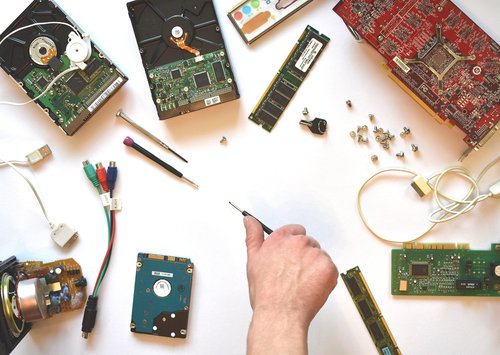
Some fixes transform a machine for very little money. If your laptop still has a spinning hard drive, swapping it for a solid-state drive is the best-value upgrade available — it will feel like a new computer, and it's a job a reasonably confident person can manage in half an hour with a good tutorial video and a small screwdriver set. Going from 8GB of RAM to 16GB helps enormously if you keep dozens of browser tabs open, as most of us do.
A tired battery is worth replacing on an otherwise healthy machine, particularly if you work away from a desk. And a clean-out — fresh thermal paste, a careful blast of compressed air through the fan — can drop temperatures noticeably and stop the fans screaming through every video call.
None of this makes sense, though, if the chassis is cracked, the hinges are grinding, or the processor is too old to run a modern, supported operating system.
When it's time to say goodbye
Replace rather than repair when:
- The repair quote is more than a third of the price of a new equivalent.
- The damage is structural — cracked casing, broken hinges, or liquid damage that has reached the board.
- The machine can't run a supported operating system, which means no more security updates.
- It's six years old or more and you rely on it for work.
- Two or more significant faults have appeared within a year of each other.
There's an honest productivity argument here too. If your laptop costs you twenty minutes a day in waiting, freezing and restarting, that's more than eighty hours a year. At that point, the cheapest option stops being the cheapest option.
Getting more life out of a machine you're keeping
If you decide to repair, do the easy wins at the same time. Keep at least 15% of your drive free, uninstall the software you never open, and switch off startup programs you don't need — that alone can shave a minute off every boot. Use a padded sleeve, and if the laptop lives on a desk, a stand to keep the vents clear.
Charge between roughly 20% and 80% where you can. Leaving a laptop plugged in at 100% for months on end is what kills most batteries early, and it's the single most common cause of a machine that suddenly lasts an hour unplugged.
Back up properly as well. A cheap external drive plus a cloud subscription costs less than one repair and saves you on the day the machine genuinely doesn't switch on. Don't wait for a warning sign — set it up now, while the laptop is still working.
If you do replace, buy for the next six years
When you buy, aim slightly higher than you need today. 16GB of RAM and a 512GB solid-state drive should be the floor for a machine you intend to keep, not the upgrade you'll wish you'd paid for two years from now. Check that the battery and RAM are user-replaceable — it's often the difference between a five-year laptop and a seven-year one.
And if you retire the old machine rather than sell it on, don't bin it. Most council recycling centres accept small electricals, and many large retailers will take it off your hands in store. Wipe the drive first, then let it go.
tag: Repairs

Priya Patel Author
Check the cable, adaptor, and charging port for damage before assuming the battery has failed, as simple faults are often responsible.
YOU MAY ALSO LIKE
Common Laptop Charging Problems and Fixes
Aug 11
10Use two separate storage methods and schedule regular backups so that documents, photographs, and coursework survive unexpected hardware failures.
read more
How to Back Up Important Files Properly
Aug 7
10Raise the screen to eye level, use an external keyboard, and take frequent breaks to reduce neck and shoulder strain.
read moreBuying Guides
-

ERRIC CATONA
Consider resolution, brightness, colour accuracy, and screen finish, because these factors affect comfort and visibility in different lighting conditions.
May 19, 2016 at 5.12 pm
Reply
ERRIC CATONA
Adding memory or replacing a hard drive can breathe new life into an ageing machine, provided the model allows simple component access.
May 19, 2016 at 5.12 pm
Reply -
ERRIC CATONA
Use headings, short sentences, and consistent formatting to create searchable notes that are easy to review before exams and tutorials.
May 19, 2016 at 5.12 pm
Reply
Laptop Reviews
Your email address will not be published.