

How to Compare Laptop Displays Before Buying
Why the screen deserves more of your attention
It is easy to get absorbed in processor names, memory sizes and battery figures, but the part of a laptop you actually interact with is the display. You will look at it for hours on end, and a poor screen makes everything harder: reading documents, editing photos, comparing two spreadsheets side by side, even just keeping your eyes comfortable on a long train journey. The trick is to know which specifications genuinely change your day-to-day experience, and which ones are marketing noise. Here is how to compare displays sensibly before you part with your money.
Resolution and pixel density
Resolution tells you how many pixels the screen can display, usually written as 1920 x 1080 or 2560 x 1600. More pixels means sharper text and more room for windows, but it also demands more from the graphics hardware and the battery.
On a 13- or 14-inch laptop, 1920 x 1080 is perfectly usable, though text can look slightly soft. A 2560 x 1600 panel at that size is noticeably crisper and generally worth the extra cost if you read a lot. On a 15- or 16-inch machine, 1920 x 1080 starts to feel coarse, and you will appreciate something closer to 2560 x 1440 or higher.
Also consider the shape of the screen. Many laptops now use a 16:10 or 3:2 ratio rather than the older 16:9. That extra vertical space is surprisingly valuable: you see more of a web page, more rows in a spreadsheet, and fewer scroll bars. If you work with documents all day, a taller screen is one of the biggest practical upgrades you can make.
Brightness: crucial for grey British light
Brightness is measured in nits, and it matters more here than in sunnier countries because our lighting is so variable. A dull, overcast January afternoon can still produce a lot of glare through a window, while a dim café corner can make a dim screen look washed out.
- 250 nits is the bare minimum for indoor use, and it will struggle near a window.
- 300 to 400 nits is a comfortable everyday range for home, office and commuting.
- 400 nits and above is worth having if you often work outdoors, on trains with big windows, or in bright rooms.
Bear in mind that many laptops reduce brightness when running on battery to save power, so the headline figure may not be what you get on the move. Check reviews that measure real-world brightness rather than trusting the specification sheet alone.
Colour accuracy and coverage
Colour coverage describes the range of colours a screen can reproduce, while colour accuracy describes how faithfully it reproduces them. For general office work, a panel covering close to 100 per cent of the sRGB standard is plenty. Colours look natural, photos look believable, and video calls look normal.
If you edit photographs, design graphics or produce video, you should look for wider coverage, often quoted as a percentage of DCI-P3. Just as important is accuracy: a screen can cover a wide range of colours and still display them wrongly. Look for measured colour error figures in reviews, sometimes given as an average Delta-E value. Anything under about two is generally considered good.
Colour also shifts as you move your head. Cheaper panels, particularly older twisted-nematic types, go dark or inverted when viewed off-centre. In-plane switching panels hold their colour far better, which matters if you ever show someone else your screen or work with the laptop slightly to one side.
Glossy, matte and everything between
Screen finish is one of the most personal choices, and it is easy to get wrong. A glossy panel gives richer contrast and punchier colours, but it behaves like a mirror whenever a light source is behind you. In a British home office with a window at your back, that reflection can be genuinely distracting.
A matte or anti-glare finish scatters light and is far more comfortable in tricky lighting, at the slight cost of some vibrancy and a faint grainy texture on plain white backgrounds. Many modern laptops use a low-reflection coating that sits somewhere between the two, which is often the best compromise.
If you can, view the laptop in a shop with a window nearby and tilt the screen. That single test tells you more than any specification.
Refresh rate, touch and other extras
A standard screen refreshes 60 times a second. Higher refresh rates, such as 90Hz or 120Hz, make scrolling and cursor movement feel smoother and are easier on the eyes during long sessions. They are not essential, but they are pleasant, and they are increasingly common on mid-range machines.
- Touchscreens add convenience and fingerprint smudges in equal measure. They are handy for note-taking and quick taps, less so for serious typing.
- Flicker-free or low blue light modes can reduce eye strain during evening work, though the effect varies from person to person.
- Anti-fingerprint coatings help if you dislike a smeary screen.
Finally, remember that display settings are adjustable. Matching the screen resolution to a comfortable scaling level, lowering brightness in the evening, and enabling a night light schedule after dark will all make a difference. A good panel, set up thoughtfully, is often more rewarding than a more expensive one left at factory defaults.
Compare the screen on the specifications that affect your comfort and visibility: sharpness, brightness, colour and finish. Get those four right and you will enjoy the laptop far more, whatever else is inside it.
tag: Buying Guides

Priya Patel Author
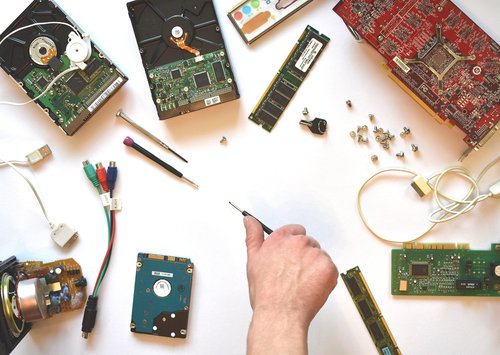
Adding memory or replacing a hard drive can breathe new life into an ageing machine, provided the model allows simple component access.
YOU MAY ALSO LIKE
Budget-Friendly Upgrades for an Older Laptop
Jul 25
10Use headings, short sentences, and consistent formatting to create searchable notes that are easy to review before exams and tutorials.
read more
Tips for Taking Notes During Lectures
Jul 21
10Follow the twenty-twenty-twenty rule, adjust brightness, and take regular breaks away from the screen to keep your eyes comfortable.
read moreBuying Guides
-

ERRIC CATONA
Use a padded sleeve, keep liquids separate, and never place the device in an overhead bin where it might be crushed by other luggage.
May 19, 2016 at 5.12 pm
Reply
ERRIC CATONA
Solid-state drives offer speed and durability, while traditional drives provide cheaper capacity, so choose according to your daily needs.
May 19, 2016 at 5.12 pm
Reply -
ERRIC CATONA
Avoid soft surfaces, clear dust from vents, and use a cooling pad during intensive tasks to prevent overheating and performance throttling.
May 19, 2016 at 5.12 pm
Reply
Laptop Reviews
Your email address will not be published.